 SmartCollect SC² Help
Table field options
This section explains all available table field options. They are listed in the same order as in SmartCollect SC². Options listed in this topic apply only to table panel visualizations.
Most field options will not affect the visualization until you click outside of the field option box you are editing or press Enter.
For more information about applying these options, refer to:
Choose how SmartCollect SC² should align cell contents:
- Auto (default)
- Left
- Center
- Right
By default, SmartCollect SC² automatically calculates the column width based on the cell contents. In this field option, can override the setting and define the width for all columns in pixels.
For example, if you enter 100 in the field, then when you click outside the field, all the columns will be set to 100 pixels wide.
By default, SmartCollect SC² automatically chooses display settings. You can override the settings by choosing one of the following options to change all fields.
Note: If you set these in the Field tab, then the display modes will apply to all fields, including the time field. Many options will work best if you set them in the Override tab.
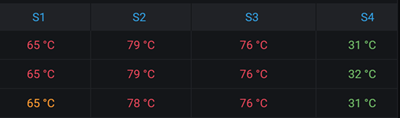
If thresholds are set, then the field text is displayed in the appropriate threshold color.
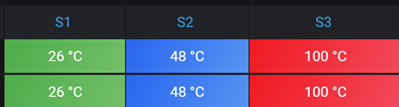
If thresholds are set, then the field background is displayed in the appropriate threshold color.
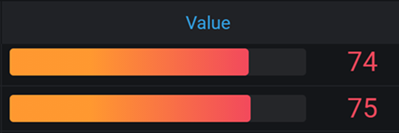
The threshold levels define a gradient.
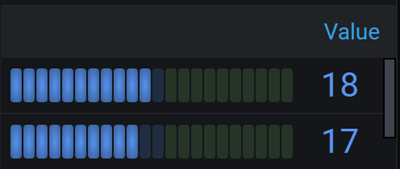
The gauge is split up in small cells that are lit or unlit.
Shows value formatted as code. If a value is an object the JSON view allowing browsing the JSON object will appear on hover.
Note: This feature is available in SmartCollect SC² 7.2+.
Turn this on to enable table field filters. For more information, refer to Filter table columns.